The plan and its colours
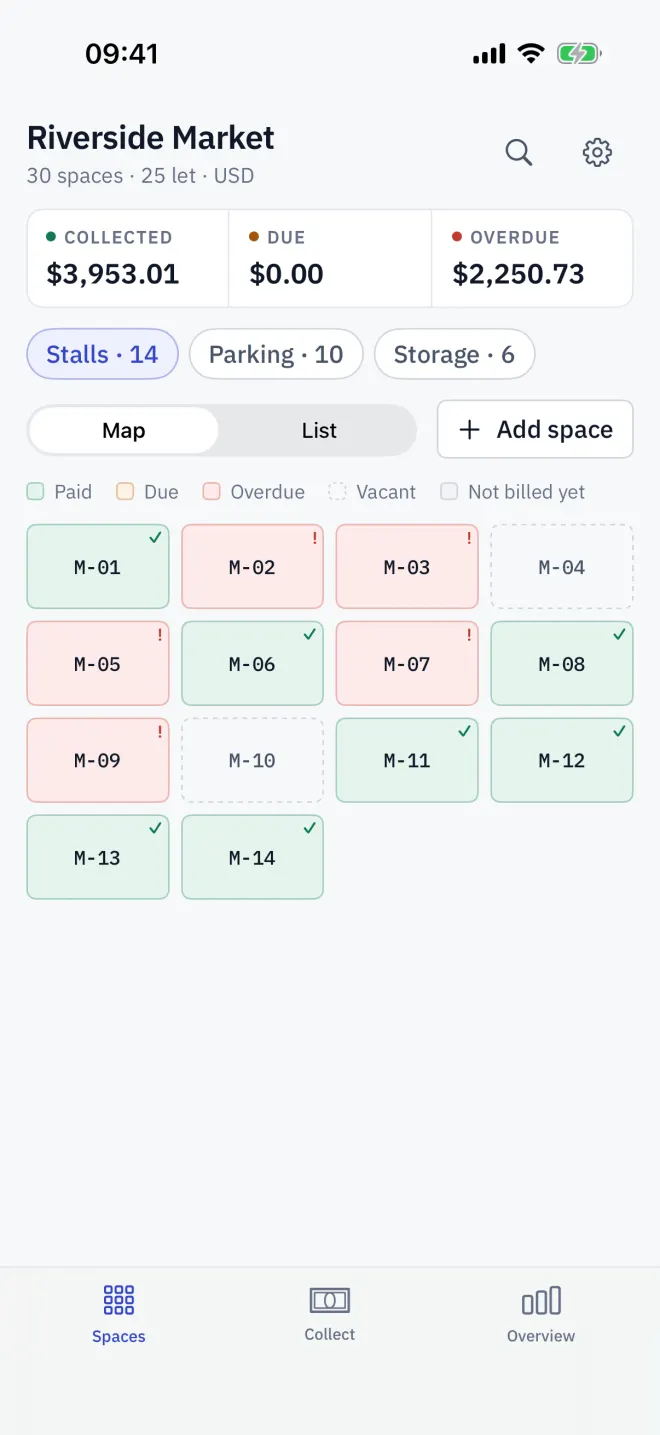
Letnook starts with a map, not a list. Every space has a cell on the plan, and its colour tells you what needs attention this period.
What the statuses mean
| Status | What it means |
|---|---|
| Paid | A payment is recorded for this period. |
| Due | The bill is complete and unpaid, and the due day has not arrived. |
| Overdue | The bill is unpaid and the due day has come. Settings decides the day. |
| Vacant | No tenant. The cell has a dashed outline. |
| Not billed yet | A tenant is in, but a meter reading or turnover is still missing, so there is no total. |
Each status also has its own symbol in the cell, so the plan reads without colour. The legend under the plan repeats the five words.
The top of the tab
Under the site name, Letnook shows how many spaces you have and how many are let. Three key figures follow: Collected this period, and what is still owed by Due and by Overdue spaces. The magnifying glass opens Search; the gear opens Settings.
Map or List
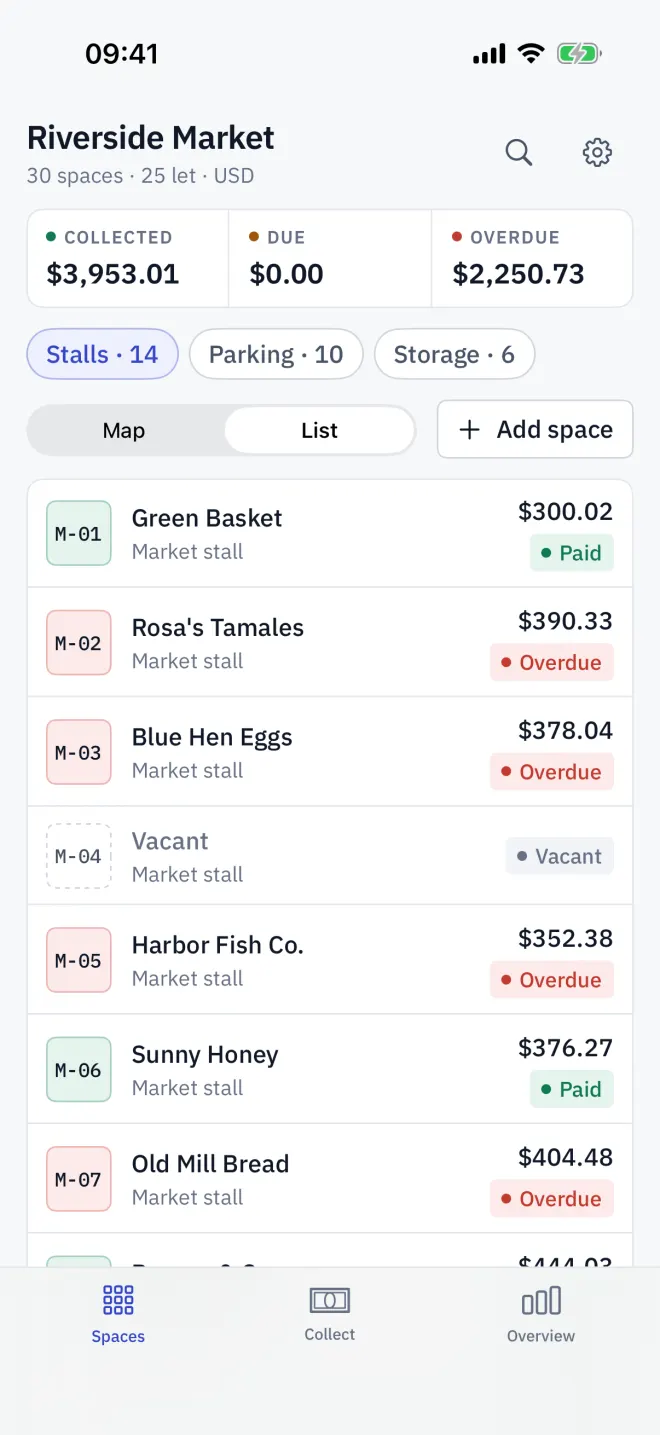
The Map and List switch changes the view, not the data. The list shows each space as a row: its code, the tenant (or Vacant), the kind, this period's total and a status badge. When a site has more than one zone, chips such as A · 20 filter both views to one zone.
Find a space
Tap the magnifying glass on Spaces or Collect and type a space code, a tenant's name, a contact or a licence plate. Tapping a result opens that space.
Use the plan for the round
Open the plan before walking the site. Start with overdue and due cells, tap a cell to see what it owes or what it is waiting for, and come back as payments turn cells to Paid.
Read next
Zones and spaces
Group Letnook spaces into zones of market stalls, parking bays or storage units. Add a zone, add a space to it, rename zones and delete spaces you no longer let.
NextLetting a space
Put a tenant in a Letnook space: open it on the plan, tap Edit space, add the tenant name and contact, check what the space is charged, and save.
NextThe collection round
Work through Letnook's Collect tab: the outstanding total, filters for overdue, not billed and paid spaces, arrears from earlier periods, and Collect next.